Berikut cara untuk mencopy file yang ada di dalam email outlook ke folder tertentu secara otomatis dengan menggunakan script VBA :
1. Tekan Tombol Alt+F11, akan muncul jendela Microsoft Visual Basic of Applications
2. Buatlah sebuah module baru, dan copy script di bawah ini ke dalam module
Public Sub SaveAttachmentsToDisk(MItem As Outlook.MailItem)
    Dim oAttachment As Outlook.Attachment
    Dim sSaveFolder As String

    sSaveFolder = "C:\Users\DT168\Documents\outlook-attachments\"

    For Each oAttachment In MItem.Attachments
        oAttachment.SaveAsFile sSaveFolder & oAttachment.DisplayName
    Next
End Sub
Note*: sSaveFolder = "C:\Users\DT168\Documents\outlook-attachments\" adalah lokasi folder yang dituju, silahkan ubah sesuai folder yang diinginkan
3. Pergi ke Mail dan klik Home > Rules > Manage Rules & Alerts, seperti berikut :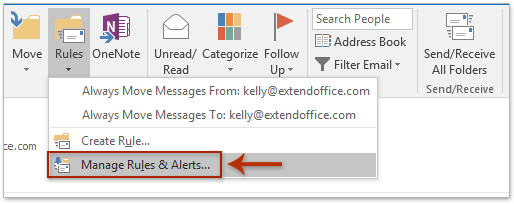
4. Klik New Rule di tab E-mail Rules, seperti berikut :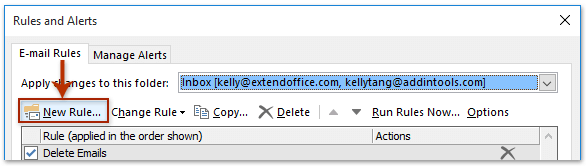
5. lalu pilih Apply rule on messages I receive dan Next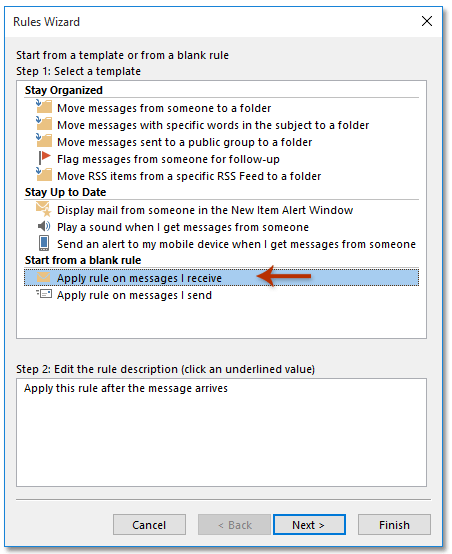
6. lalu Pilih kondisi yang diinginkan, kalau disini admin Next saja, dengan default kondisi semua email yang masuk di komputer admin akan tercopy.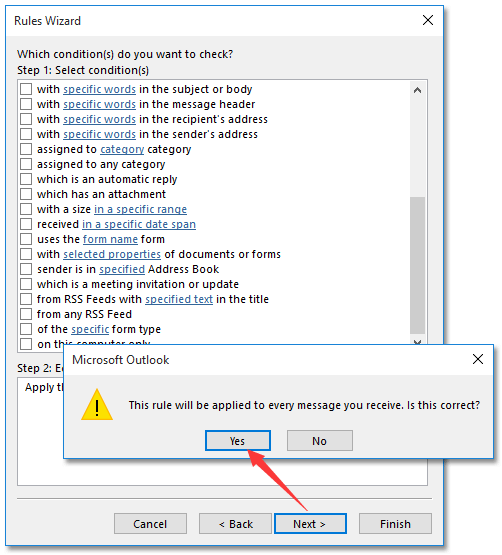
7. lalu Pilih (1) Check run a script, (2) klik text a script dan (3) pilih script yang dibuat dan Next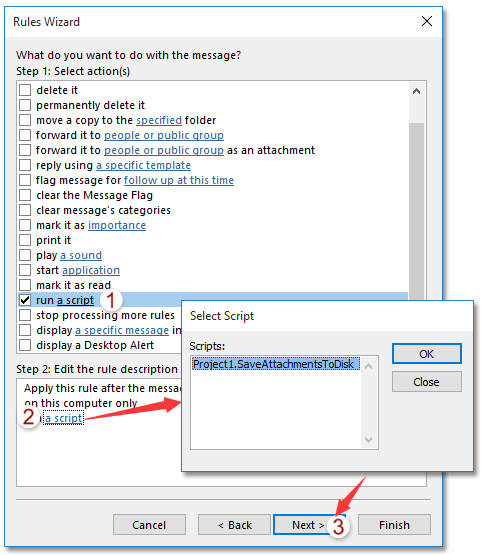
8. Next kembali sampai Wizard terakhir
9. Pada Wizard Finish, (1) Masukan Nama Rule,(2) Pilih option lain jika diperlukan dan terakhir (3) Finish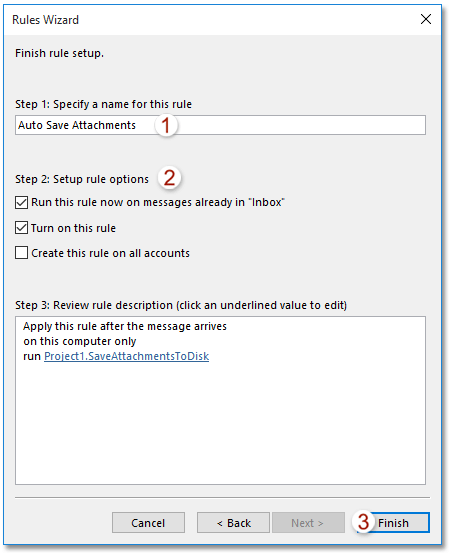
Selamat mencoba, Terima kasih.
Memahami Struktur Email Outlook
Sebelum menyalin file attachment, penting untuk memahami struktur email di Outlook. Setiap email tersimpan sebagai item MAPI dengan berbagai property termasuk attachment yang ter-embed di dalamnya.
Script VBA untuk Copy Attachment
Berikut script VBA lengkap untuk menyalin file attachment dari email:
Sub CopyAttachments()
    Dim olApp As Outlook.Application
    Dim olItem As Outlook.MailItem
    Dim olAtt As Outlook.Attachment
    Dim savePath As String

    Set olApp = Application
    Set olItem = olApp.ActiveExplorer.Selection.Item(1)
    savePath = "C:\Attachments\"

    For Each olAtt In olItem.Attachments
        olAtt.SaveAsFile savePath & olAtt.FileName
    Next olAtt

    MsgBox "Attachment berhasil disalin!"
End Sub
Tips Lanjutan
- Filter berdasarkan ekstensi - Tambahkan filter untuk hanya menyalin tipe file tertentu
- Penamaan otomatis - Tambahkan timestamp untuk menghindari overwrite file
- Error handling - Tambahkan penanganan error untuk file yang locked atau path yang tidak valid
Script dengan Filter dan Error Handling
Berikut versi yang lebih lengkap dengan filter tipe file:
Sub CopyFilteredAttachments()
    On Error GoTo ErrorHandler
    Dim olApp As Outlook.Application
    Dim olItem As Outlook.MailItem
    Dim olAtt As Outlook.Attachment
    Dim savePath As String
    Dim allowedExt As String

    Set olApp = Application
    Set olItem = olApp.ActiveExplorer.Selection.Item(1)
    savePath = "C:\Attachments\" & Format(Now(), "yyyymmdd_hhnnss") & "\"

    ' Buat folder jika belum ada
    If Dir(savePath, vbDirectory) = "" Then MkDir savePath

    ' Filter ekstensi yang diizinkan
    allowedExt = ".pdf,.doc,.docx,.xls,.xlsx,.jpg,.png"

    For Each olAtt In olItem.Attachments
        Dim ext As String
        ext = LCase(Right(olAtt.FileName, Len(olAtt.FileName) - InStrRev(olAtt.FileName, ".")))
        If InStr(allowedExt, ext) > 0 Then
            olAtt.SaveAsFile savePath & olAtt.FileName
        End If
    Next olAtt

    MsgBox "Attachment berhasil disalin ke: " & savePath
    Exit Sub

ErrorHandler:
    MsgBox "Error: " & Err.Description
End Sub